
Schedule
The Schedule page is a calendar view of every group’s recurring lessons. It’s where you go to see this week at a glance, cancel a lesson (with one click and an automatic email to enrolled students), or reschedule a single occurrence to a new time without touching the group’s recurring schedule.
How lessons appear on the calendar
Lessons are NOT stored as individual rows in the database. They’re derived from each group’s recurring weekly schedule (set on the group when you created it). The Schedule page expands those recurrence rules into concrete events for the visible date range.
Two consequences:
- Editing a group’s recurring schedule changes ALL future lessons for that group automatically.
- Editing a single lesson’s date/time creates a one-off override — the recurrence rule isn’t touched.
The four views
A toolbar at the top right toggles between four layouts:
| View | Best for |
|---|---|
| Day | Today’s running order — what’s happening hour by hour. |
| Week | Default. Spot conflicts and gaps across teachers. |
| Month | Plan ahead. Pick a date to drill into. |
| List | Print-friendly. Scrollable list grouped by date. |
Color coding
Each group is colored by teacher, not by subject. The mapping is deterministic — the same teacher gets the same color across page loads. Easy to spot “Mr. Ahmad has 4 lessons today” or “we’ve over-booked Dr. Salma on Wednesday”.
A red strikethrough = a cancelled lesson. A yellow dashed outline = a rescheduled lesson (the original slot; the new slot appears in normal color where it was moved to).
Cancelling a lesson
Click any lesson card on the calendar. A popover appears with group details and three buttons. Click Cancel lesson.
Fill in:
- Reason (optional) — e.g. “Teacher unavailable”, “Public holiday”. Shown in the email students receive.
- Refundable (off by default) — most centers compensate cancelled lessons with a make-up session rather than a refund.
- Send email notifications (on by default) — turn off only for test cancellations.
What happens after Confirm cancel:
- The lesson appears as cancelled (red strikethrough) on the calendar.
- Every student enrolled in the group with a verified email gets a localized email: “Your X lesson on Y at Z has been cancelled”.
- A toast tells you “Sent to N students”.
- The cancellation does NOT count as an absence on attendance records.
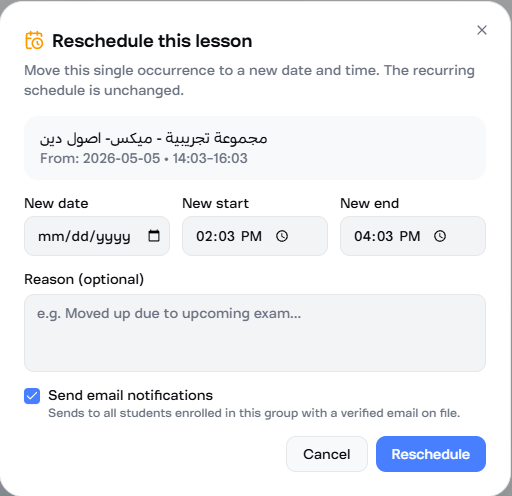
Rescheduling a lesson
Click a lesson card → Reschedule.
Pick the new date + time. The dialog defaults the new time to the original time, so the typical “same hour, different day” reschedule is one input change.
What happens after Confirm reschedule:
- The original slot shows as “moved” (grayed with dashed border).
- A new event appears at the new date + time in the group’s normal teacher color, with a small “moved here” badge.
- Students get an email showing both the old and new slots.
Undoing a cancel or reschedule
Click the cancelled or rescheduled lesson card. The popover has an Undo this change button.
Clicking it:
- Restores the original slot to “scheduled” state.
- Does NOT send a “we changed our mind” email — students who got the cancellation email will be confused if you do this often, so use it only for genuine mistakes (typo in the date, wrong group selected, etc.).
- The undo is appended to the audit trail — both the cancellation and the undo are preserved as history.
Permissions
Two related permission keys gate this page:
schedule.view— can open the page, see the calendar.schedule.manage— can cancel, reschedule, and undo.
By default Admin and Moderator have both. Teachers have both (so
they can manage their own groups). Staff get schedule.view only.
Common questions
A lesson I cancelled is still showing on the calendar. The cancellation appears as a red strikethrough card — the row isn’t removed entirely so the audit trail stays visible. If you want it gone visually, click the card → Undo this change to restore it (then delete the group instead, or change its schedule to skip that day).
Email didn’t send to a student after cancellation. The notification only sends to students with a verified email on record. Students added manually without an email won’t get notified. The toast after cancel tells you “Sent to X / Y students” — the gap is the unverified ones.
WhatsApp notifications? Available on the Enterprise plan. Configure the integration under Settings → WhatsApp Integration. Once configured, every cancel / reschedule sends both email and WhatsApp.
Future lessons aren’t showing past my term’s end date. Correct — the calendar respects each group’s semester start / end. Lessons stop appearing when the active semester ends. Set up the next semester (Academic Setup) and link new groups to it.